PayLink SDK Quickstart
Before You Begin
You’ll Need:
- ✅ Python 3.8 or higher
- ✅ A PayLink account with API access
- ✅ Payment provider credentials (e.g., M-Pesa)
Step 1: Set Up Your PayLink Account
1. Create a PayLink Account
Visit https://paylink-platform-izl1.vercel.app/ and create your account.
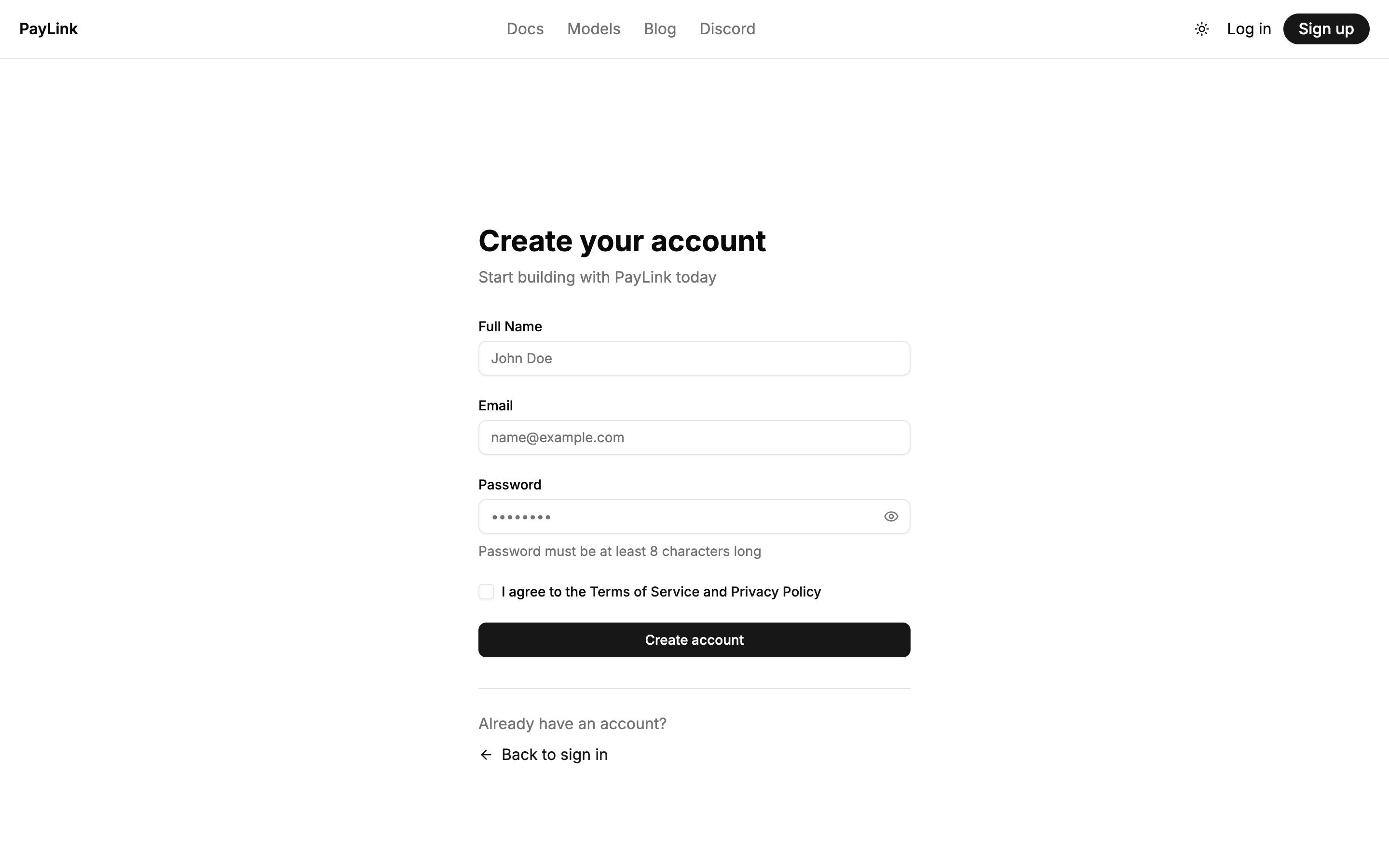
Fill in your details to create your PayLink account
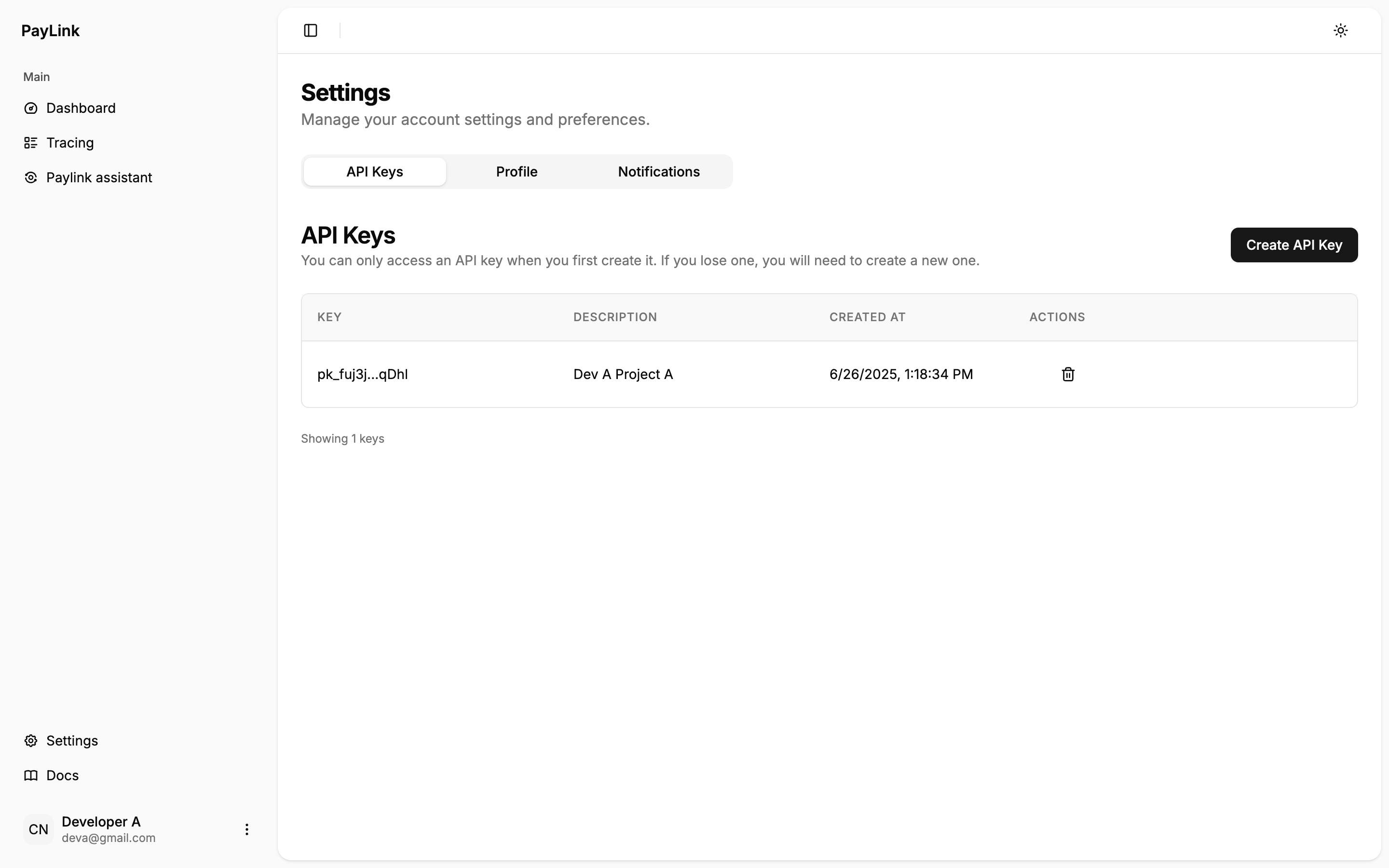
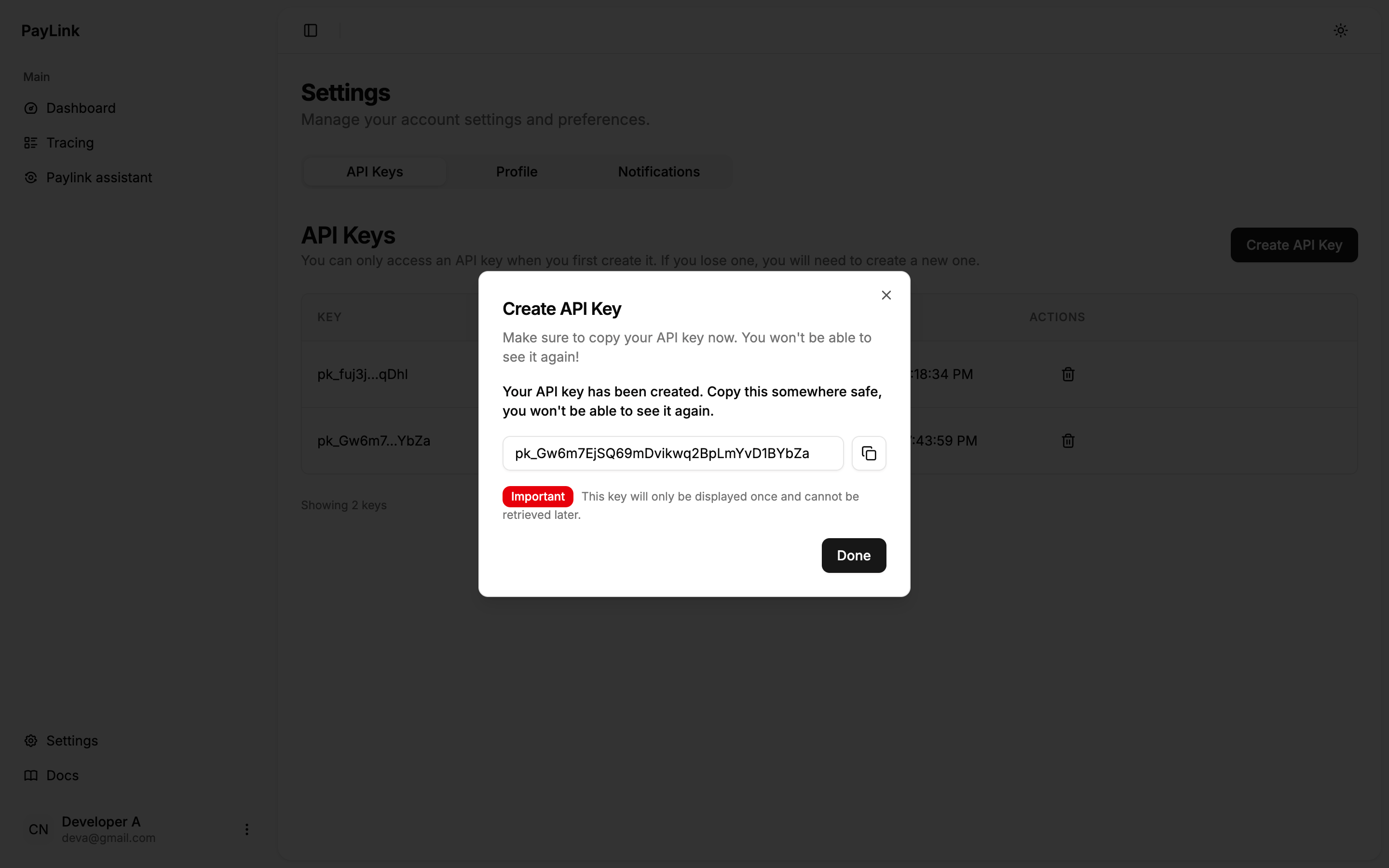
Step 2: Configure Environment Variables
Create a .env file in your project root with your PayLink credentials:
You can create a project on the PayLink platform and use the same name or just specify your preferred name under PAYLINK_PROJECT and PayLink will create the project automatically.
Step 3: Install the SDK
Run this command in your terminal to install the PayLink SDK and its dependencies:
pip install paylink-sdk==X.Y.ZStep 4: Set Up a Basic Client
Create a new file named client_example.py with the following code:
Test Your Connection
Run this script to verify your connection to the PayLink server:
If successful, you should see a list of available payment tools printed to your console.
Step 5: Process a Payment
Process Your First Payment
Create a new file named process_payment.py with this code:
Run the Payment Example
python process_payment.pyIn production, replace the example phone number with your customer’s actual phone number. M-Pesa will send a push notification to this number requesting payment confirmation.