> ## Documentation Index
> Fetch the complete documentation index at: https://paylink.mintlify.site/llms.txt
> Use this file to discover all available pages before exploring further.

# Tracing

> Debug your PayLink integration with tracing

# Tracing in PayLink

<div className="intro-box">
  <div className="intro-icon">🔍</div>

  <div className="intro-content">
    PayLink provides a powerful tracing platform to help developers monitor, debug, and optimize their payment integrations.
  </div>
</div>

## What is PayLink Tracing?

PayLink Tracing is a monitoring and debugging tool that gives you visibility into how your payment tools are being called by agents and what parameters are being passed. This visibility is crucial for debugging issues, understanding payment flows, and optimizing your integration.

## Benefits of Tracing

<div className="benefits-grid">
  <div className="benefit-card">
    <h3>🐛 Debug with Confidence</h3>
    <p>Quickly identify and resolve issues by seeing exactly what parameters were passed to each tool and how the system responded.</p>
  </div>

  <div className="benefit-card">
    <h3>📈 Monitor Performance</h3>
    <p>Track response times and success rates for different payment operations to optimize your application.</p>
  </div>

  <div className="benefit-card">
    <h3>🔎 Audit Transactions</h3>
    <p>Maintain a complete audit trail of all payment activities for compliance and reconciliation purposes.</p>
  </div>
</div>

## Enabling Tracing

To enable tracing for your PayLink integration, set the `PAYLINK_TRACING` environment variable to `enabled` in your `.env` file:

```bash theme={null}
# PayLink credentials
PAYLINK_API_KEY=your_api_key_here
PAYLINK_PROJECT=your_project_name
PAYLINK_TRACING=enabled  # Enable tracing
```

Alternatively, you can enable tracing when initializing the PayLink client:

```python theme={null}
from paylink_sdk import PayLinkClient

# Enable tracing explicitly
client = PayLinkClient(tracing="enabled")
```

## Accessing Trace Data

<div className="steps-container">
  <div className="step">
    <div className="step-content">
      <h3>1. Log in to PayLink Dashboard</h3>
      <p>Access your PayLink dashboard at <a href="https://paylink-platform-izl1.vercel.app/" target="_blank" rel="noopener noreferrer">[https://paylink-platform-izl1.vercel.app/](https://paylink-platform-izl1.vercel.app/)</a></p>
    </div>
  </div>

  <div className="step">
    <div className="step-content">
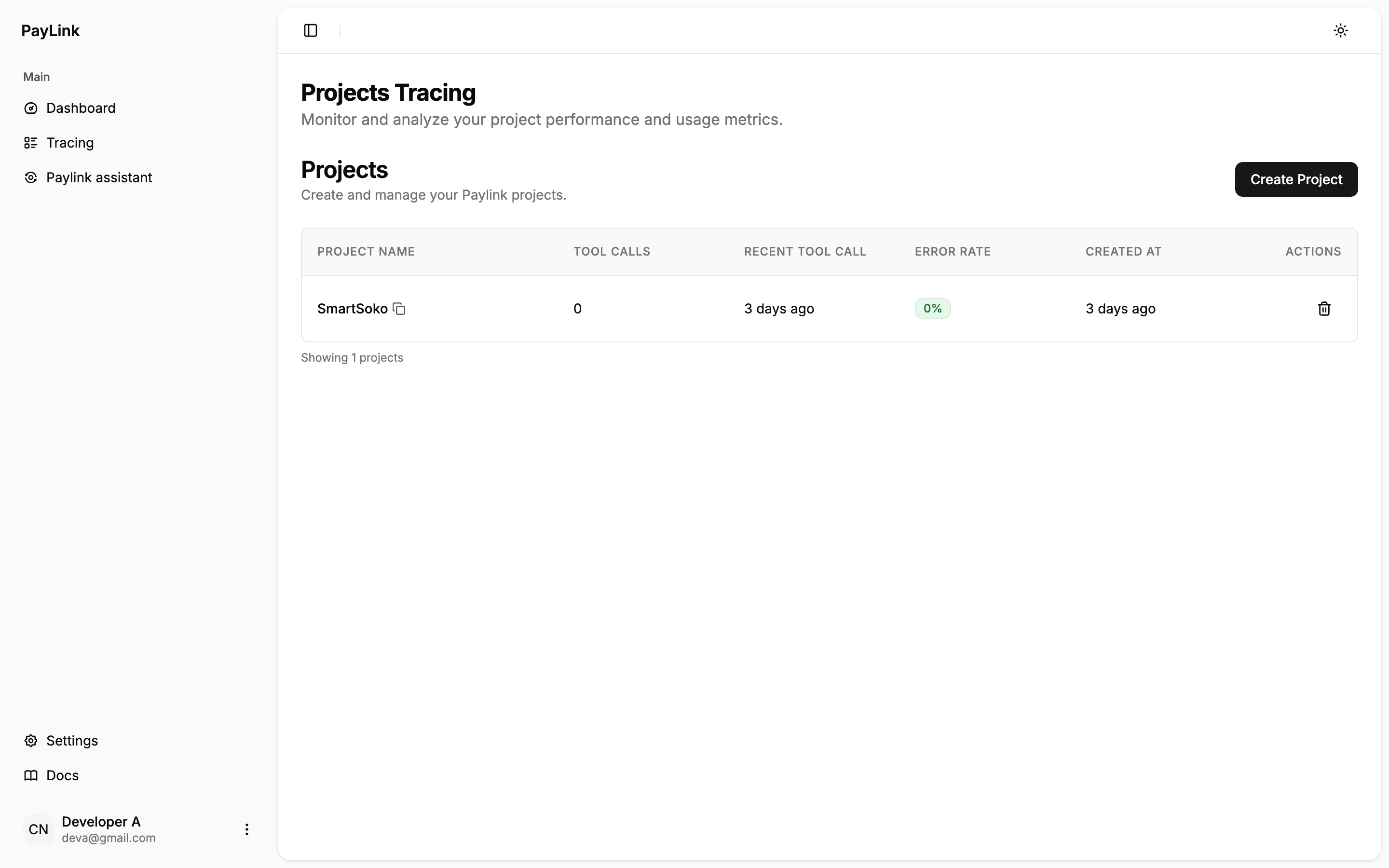
      <h3>2. Navigate to Tracing Tab</h3>
      <p>Click the tracing tab to be able to see list of all the projects being traced</p>

      <img src="https://mintcdn.com/paylink/nixULzcSPO_B-cPs/images/navigate-to-tracing-tab.png?fit=max&auto=format&n=nixULzcSPO_B-cPs&q=85&s=3a043cec3b4811b7d3bd76325b1a0fee" alt="Navigate to Tracing Tab" width="100%" data-path="images/navigate-to-tracing-tab.png" />

      <p className="image-caption">Tracing tab showing list of projects with active traces</p>
    </div>
  </div>

  <div className="step">
    <div className="step-content">
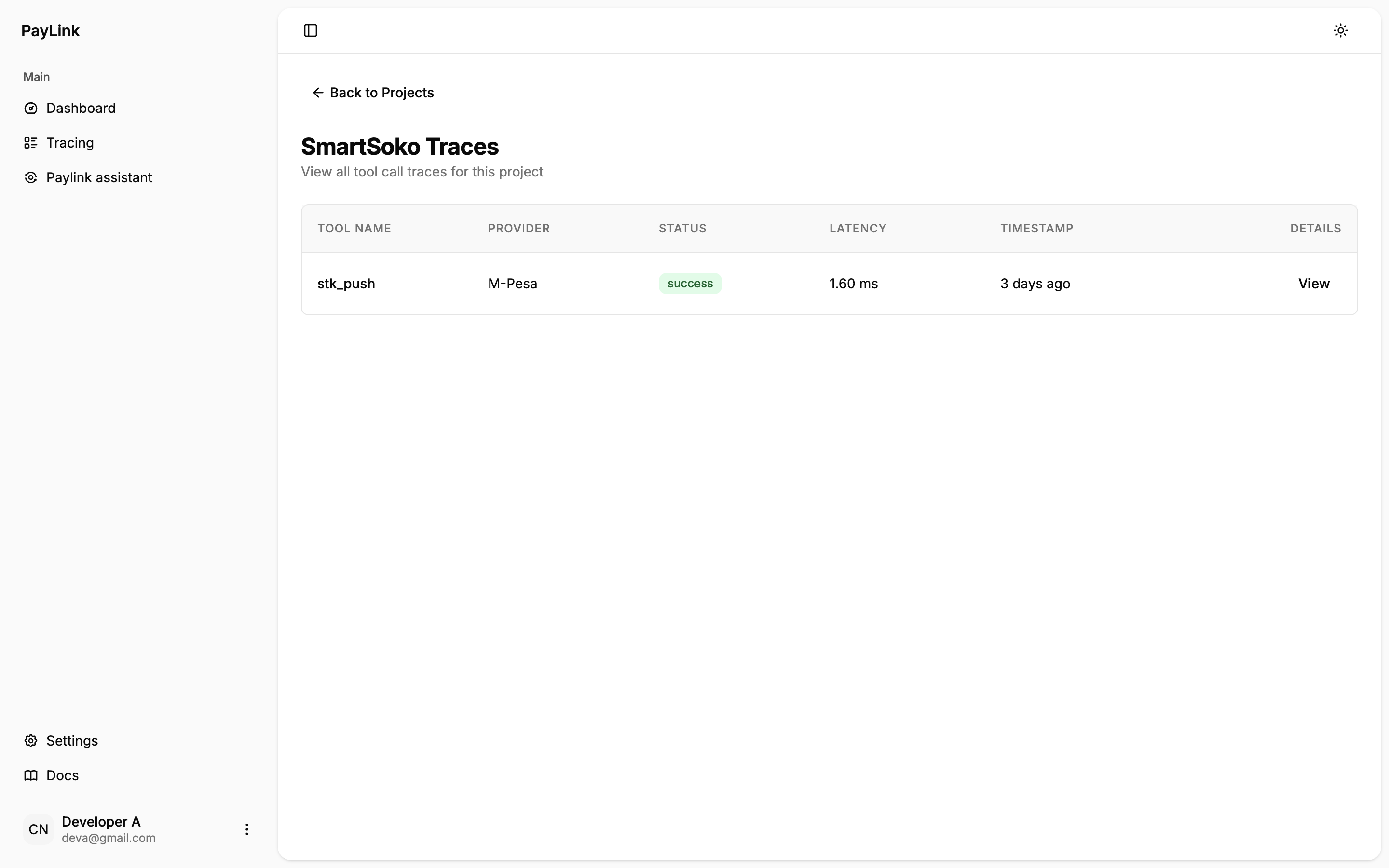
      <h3>3. View Traces</h3>
      <p>To view the traces, click on the project name</p>

      <img src="https://mintcdn.com/paylink/nixULzcSPO_B-cPs/images/view-traces.png?fit=max&auto=format&n=nixULzcSPO_B-cPs&q=85&s=47c2591ee34c113c888e7081160e58aa" alt="View Traces" width="100%" data-path="images/view-traces.png" />

      <p className="image-caption">Viewing traces for a specific project</p>
    </div>
  </div>

  <div className="step">
    <div className="step-content">
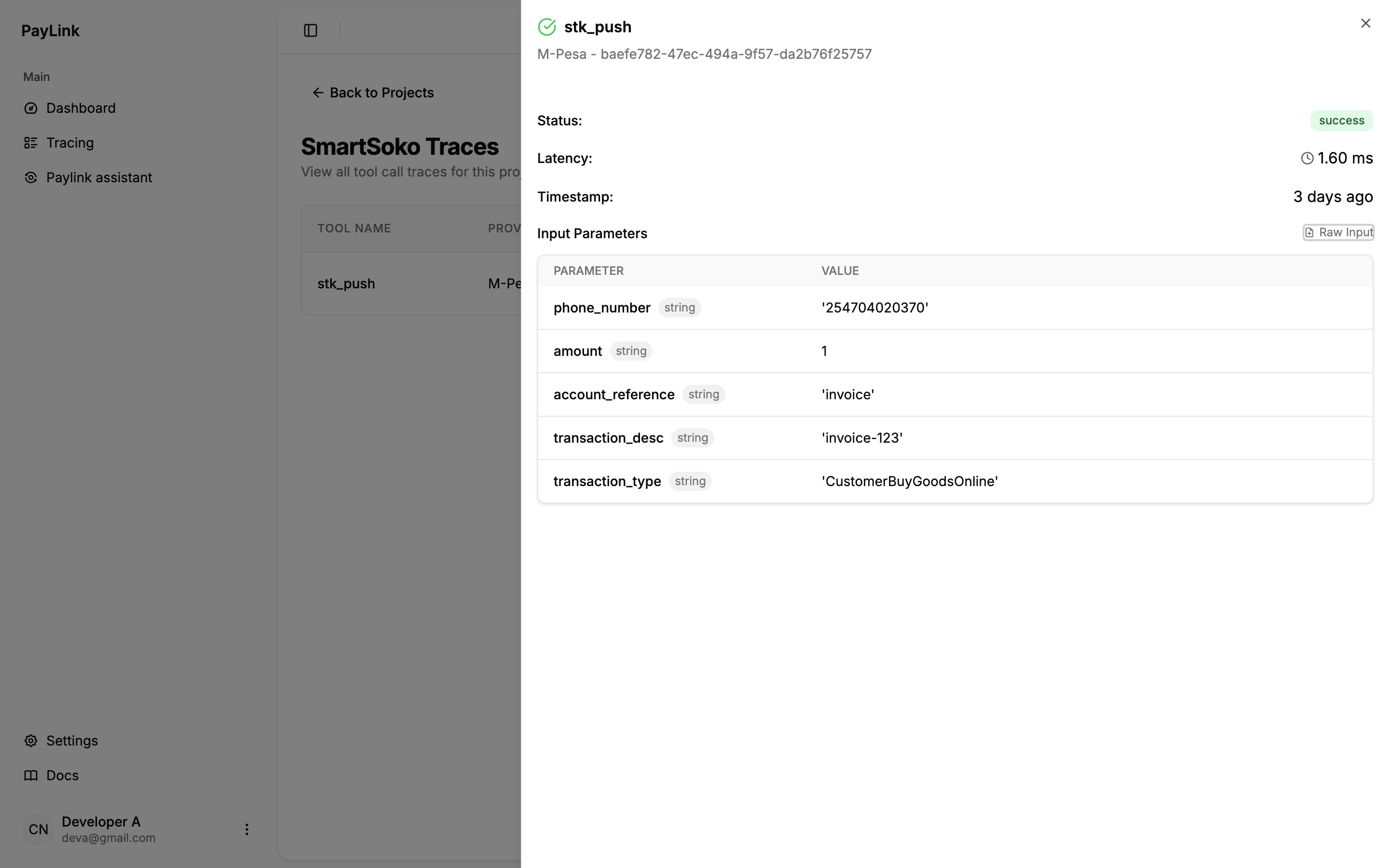
      <h3>4. View Tool Parameters</h3>
      <p>To view detailed parameters and responses, click on a specific tool name in the traces list</p>

      <img src="https://mintcdn.com/paylink/nixULzcSPO_B-cPs/images/view-tool-parameters.png?fit=max&auto=format&n=nixULzcSPO_B-cPs&q=85&s=cae7487ac52b0647c327d0d949917d38" alt="View Tool Parameters" width="100%" data-path="images/view-tool-parameters.png" />

      <p className="image-caption">Detailed view of tool parameters and response data</p>
    </div>
  </div>
</div>

## Best Practices

<div className="best-practices-box">
  <ul>
    <li><strong>Use different project names</strong>: If you want to trace multiple projects, make sure they have different project names. You can use the same API key for all projects while keeping their traces separate.</li>
    <li><strong>Enable tracing in development</strong>: Always have tracing enabled during development and testing.</li>
    <li><strong>Check traces immediately</strong>: When debugging issues, check the traces immediately after the operation.</li>
  </ul>
</div>

## Next Steps

<div className="next-steps-box">
  <p>Now that you understand PayLink's tracing capabilities:</p>

  <ul>
    <li>Enable tracing in your development environment</li>
    <li>Familiarize yourself with the trace dashboard</li>
    <li>Set up alerts for failed transactions</li>
    <li>Learn how to <a href="../advanced/troubleshooting">troubleshoot common issues</a> using trace data</li>
  </ul>
</div>